 My Time-Tracker
What it’s about
The app answers one question: What did I work on – and for how long? There are three levels for that, and that’s all it takes.
- Client – who you work for. Even “Personal” or “Own projects” is a client.
- Project – what you work on for this client. Every project belongs to exactly one client.
- Entry – a stretch of time on a project, from start to stop.
On top of that there are tags. They cut across everything: “Meeting”, “Travel” or “billable” come up with every client. Later you can ask how much time went into meetings – no matter for whom.
The pictures in this manual show the German interface. The app follows your system language: German, English, French or Italian.
1Creating a client and project
You can only track time once there is a project. Open Clients and tap + in the top right: first a client, then a project for it.
Every client has a color – it runs through lists, charts and widgets. A project inherits its client’s color or gets its own.
Swipe right on a project to make it a favorite. Favorites sit ready as chips on the Tracking screen.
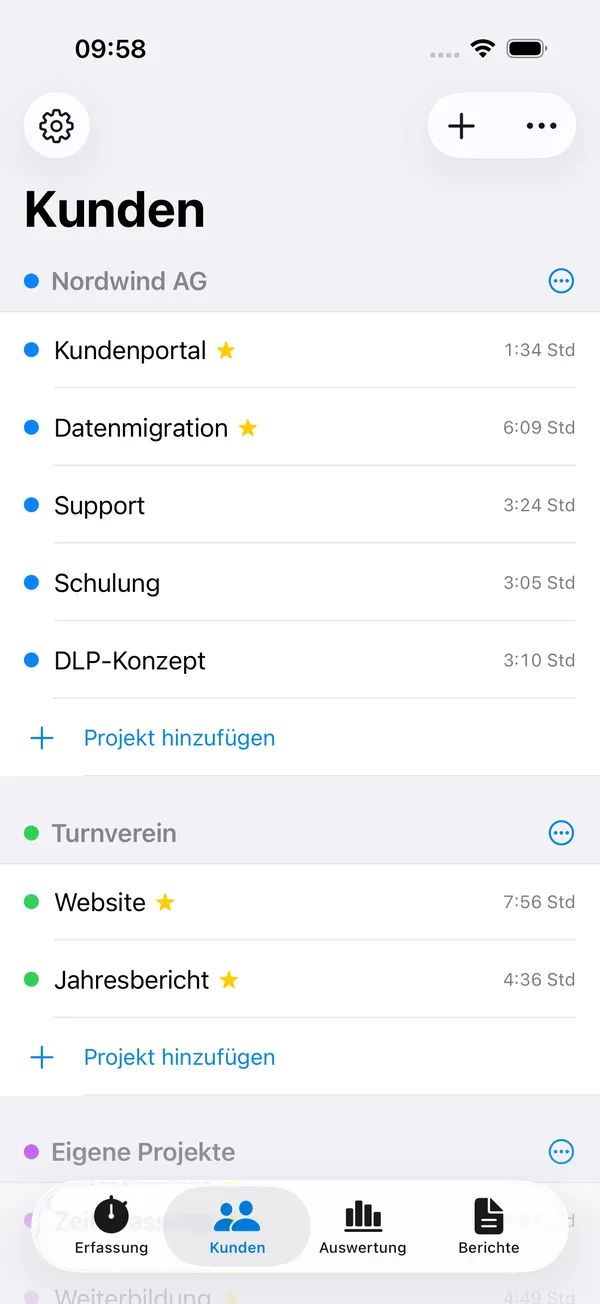
In the project itself you set its color, a note and Tags for new entries. They are a default: every entry that starts on this project gets them automatically – even when started via the Action button, a widget or the watch.
An archived project disappears from the selection, but its times stay in the analysis.

2Tracking time
The Tracking screen is the start page. At the top is the timer card, below it Quick access with your favorites, then the entries of the last 30 days grouped by day.
Start begins on the project you used last. A tap on a chip in Quick access starts right there.
Switching mid-run: Tap a different project. The app stops and starts in one go – there is no gap between the two entries.
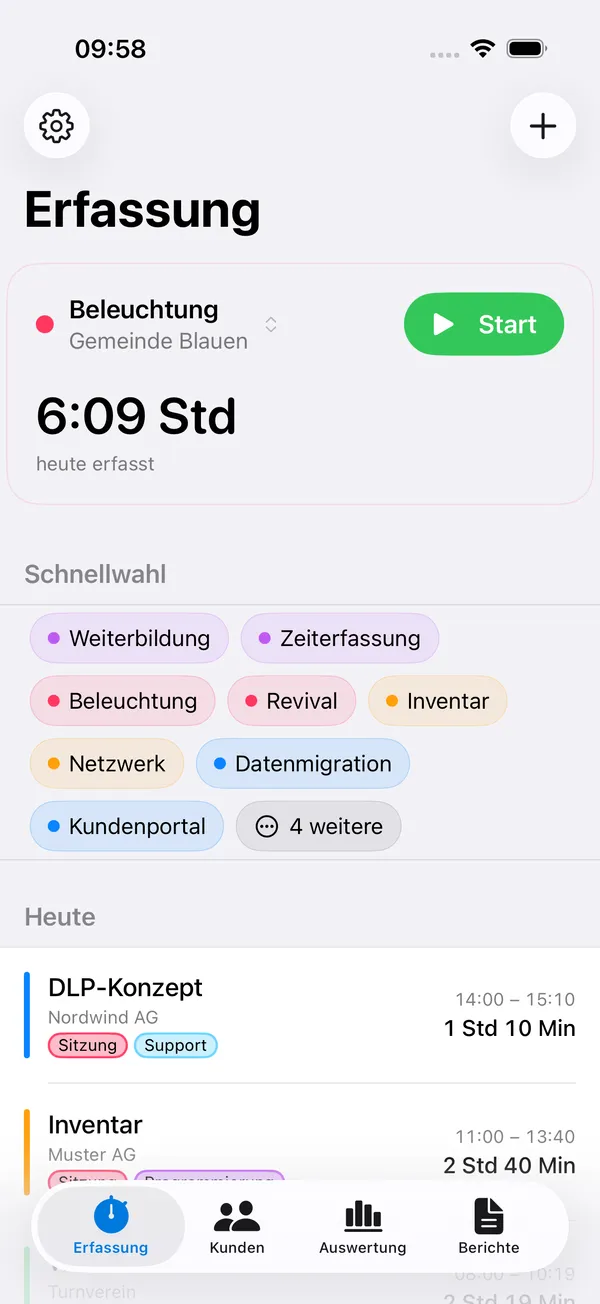
While time is running, the card shows the project, the running duration and the daily total. Stop ends the entry.
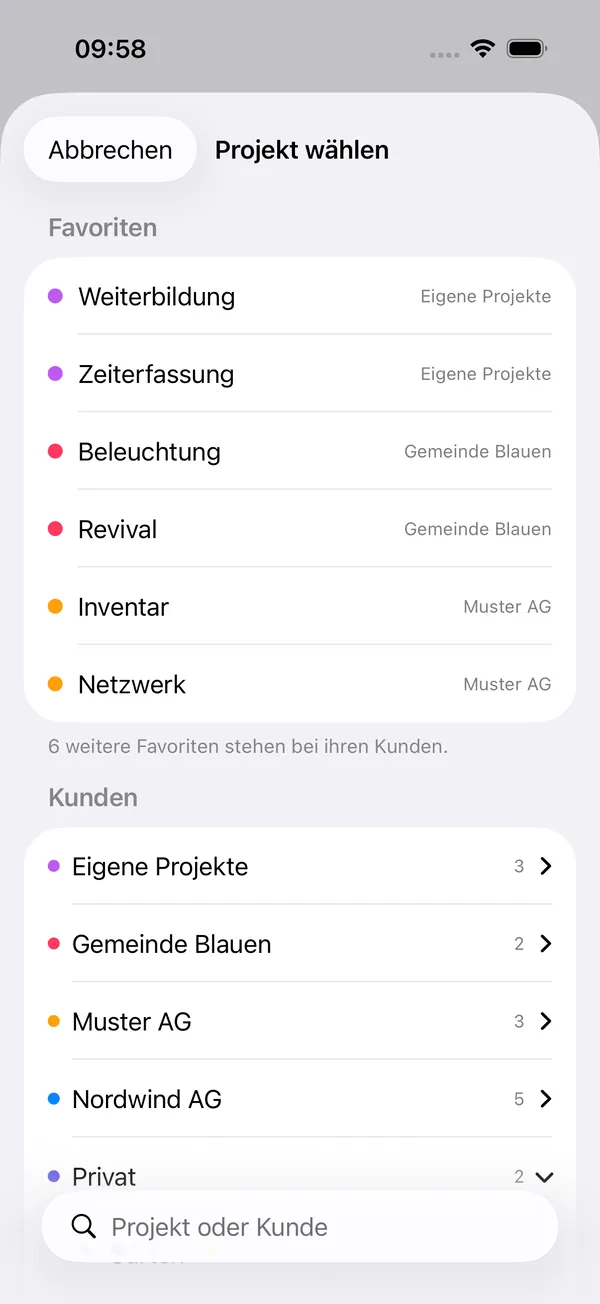
Choose Project gets you to all projects: favorites are at the top, the rest are grouped by client below, ready to expand. A search shows all matches at once.
3Tags
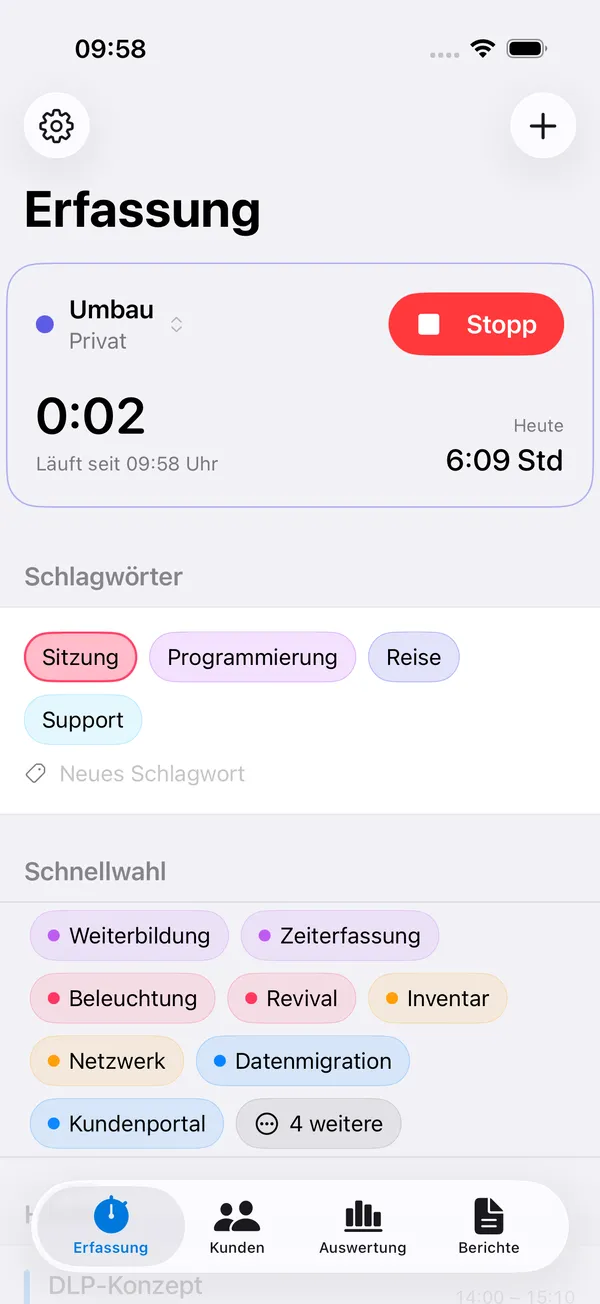
While a timer is running, the Tags section appears on the Tracking screen. One tap sets a tag, a second tap removes it; several at once are allowed. Type a name in the field below to create a new one.
The section only appears during a run. To add tags afterwards, set them in the entry itself.
You manage them under Settings › Tracking › Tags: rename, choose a color, delete. When deleting, the app tells you how many entries will lose the tag – the tracked time stays, only the label goes.
Typos are caught: “Travel” and “travel ” don’t become two tags.

4Correcting and adding time
Tap an entry in the list: change times, write a note, set tags or move it to a different project. Moving an entry doesn’t change its tags.
A long press (on the Mac: right-click) opens a menu with Edit, Switch Project and Delete.
Adding forgotten time: tap + in the top right. The last hour is suggested – usually two adjustments to the times are enough.
Swiping left, or Delete Entry in the entry itself, moves it to the Trash.

5Trash NEW IN 1.1
A deleted entry isn’t gone right away. It moves to the trash, and the notice Entry deleted · Undo briefly appears at the bottom.
Right afterwards you can get it back in three ways: with Undo, by shaking your iPhone, or with ⌘Z on the Mac and on an iPad with a keyboard.
A running entry is stopped when you delete it. A restored entry doesn’t keep running – it is back in the list with its times.

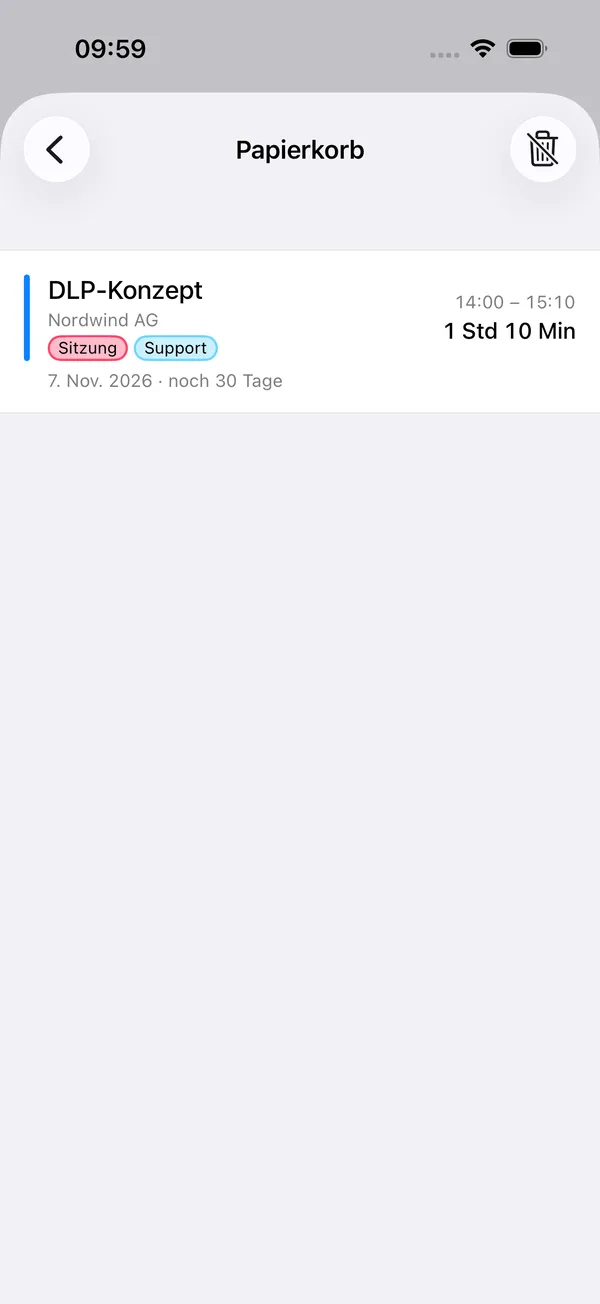
Later you’ll find deleted entries under Settings › Trash › Deleted Entries. Swipe right to restore, left to delete permanently; in the top right you empty the whole trash.
Under Delete permanently after you choose the period: 7, 30 (default) or 90 days – or Never. The period applies on all your devices.
6Analysis
The analysis opens on the current week; use the arrows to go back, and the bar at the top to switch to month, year or the entire period.
The chart shows the days (or months) stacked by project. Tap a bar: the legend and all lists below then show only that day, and the headings name it. A second tap on the same bar clears the selection.
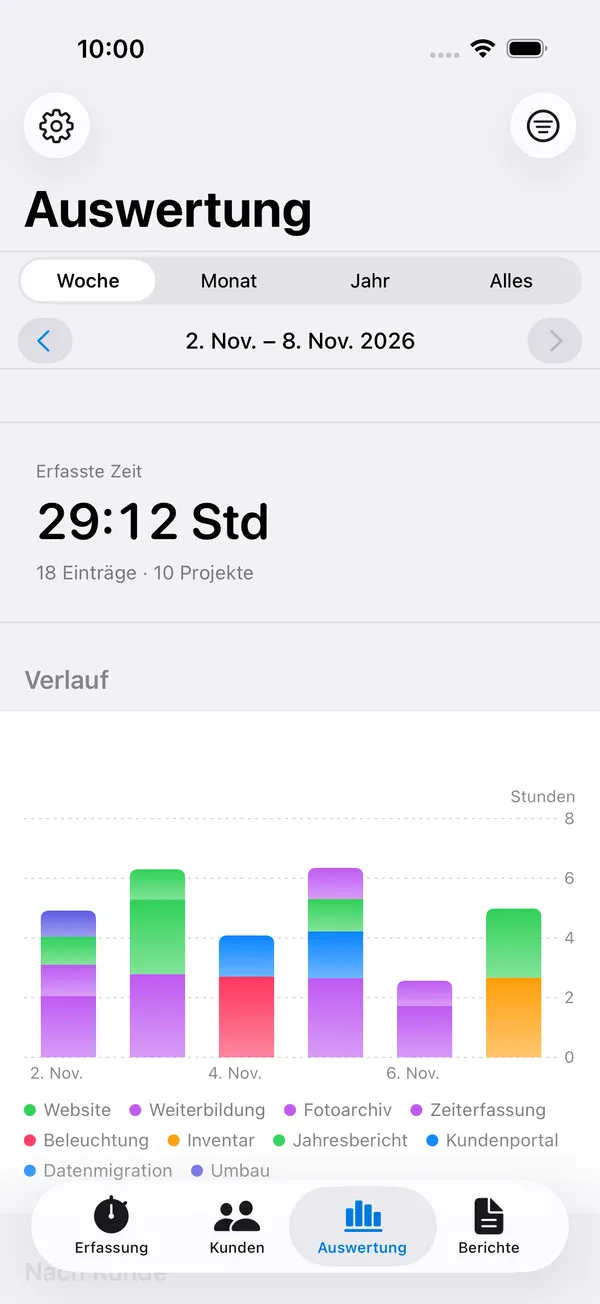
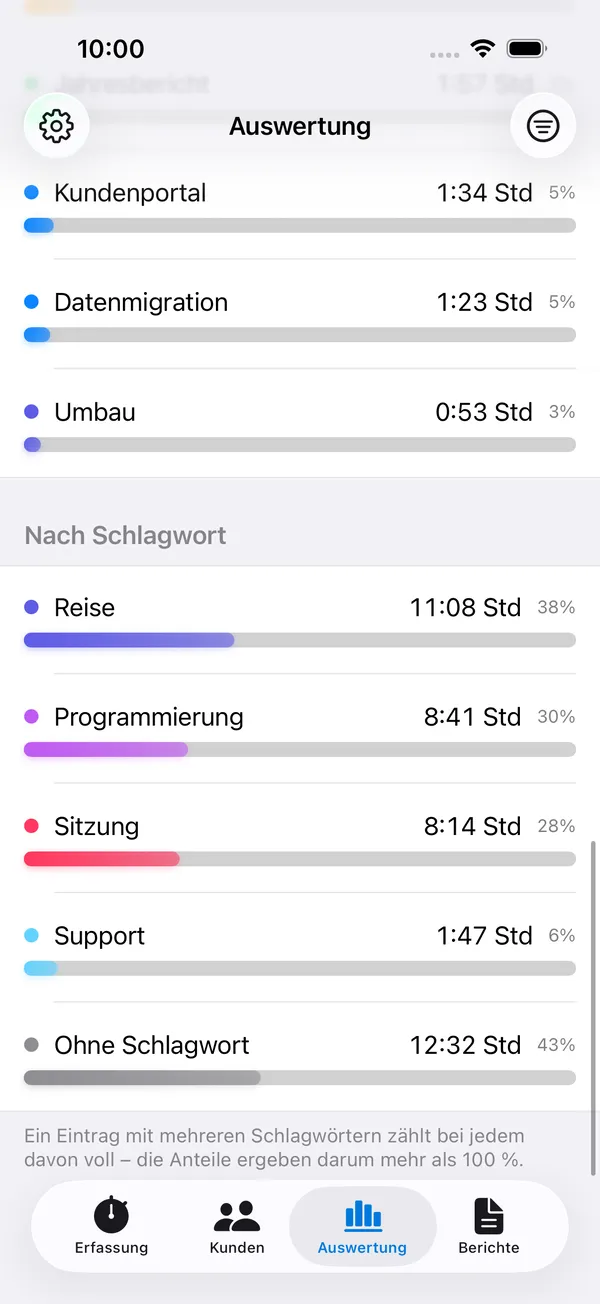
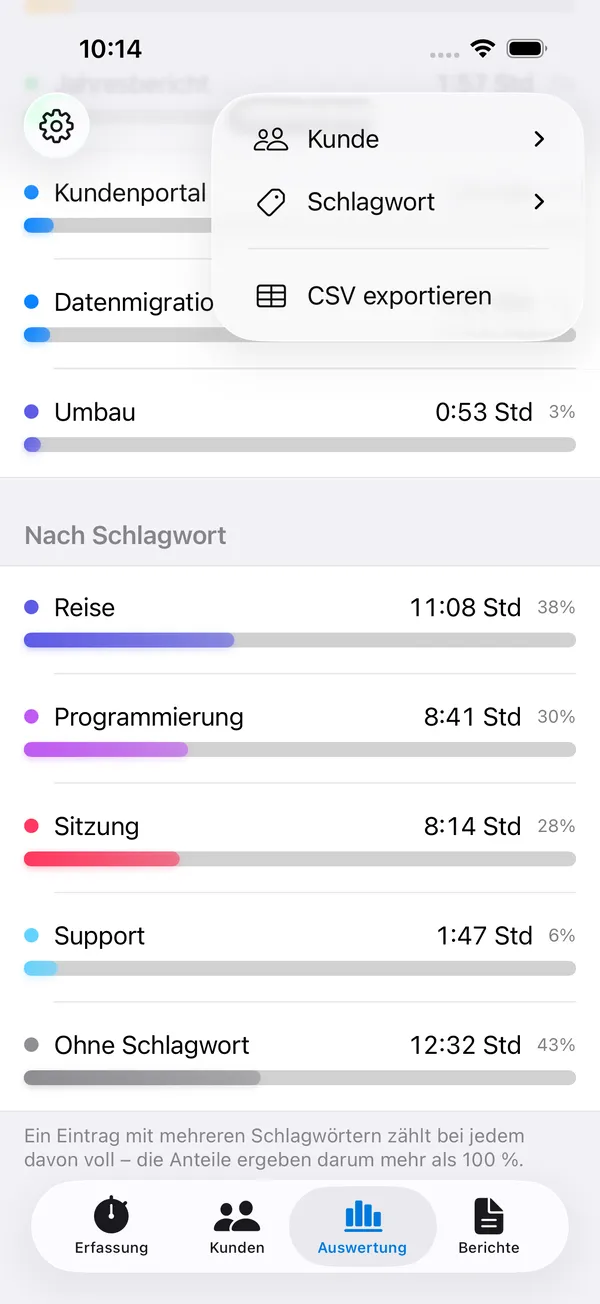
Below are the totals by client, by project and by tag, each with its share of the total time.
For tags, the shares can add up to more than 100 %. That’s correct: an entry with two tags counts fully for both. The question is “how much time carried this tag” – not “how do I divide up my week”.
In the menu in the top right you filter by Client or Tag and export a CSV file for Numbers or Excel. While a filter is active, the icon is filled.
7Timesheets as PDF
A report is a finished timesheet for one company and one period – as a PDF, ready to pass on. It stays in the list until you delete it.
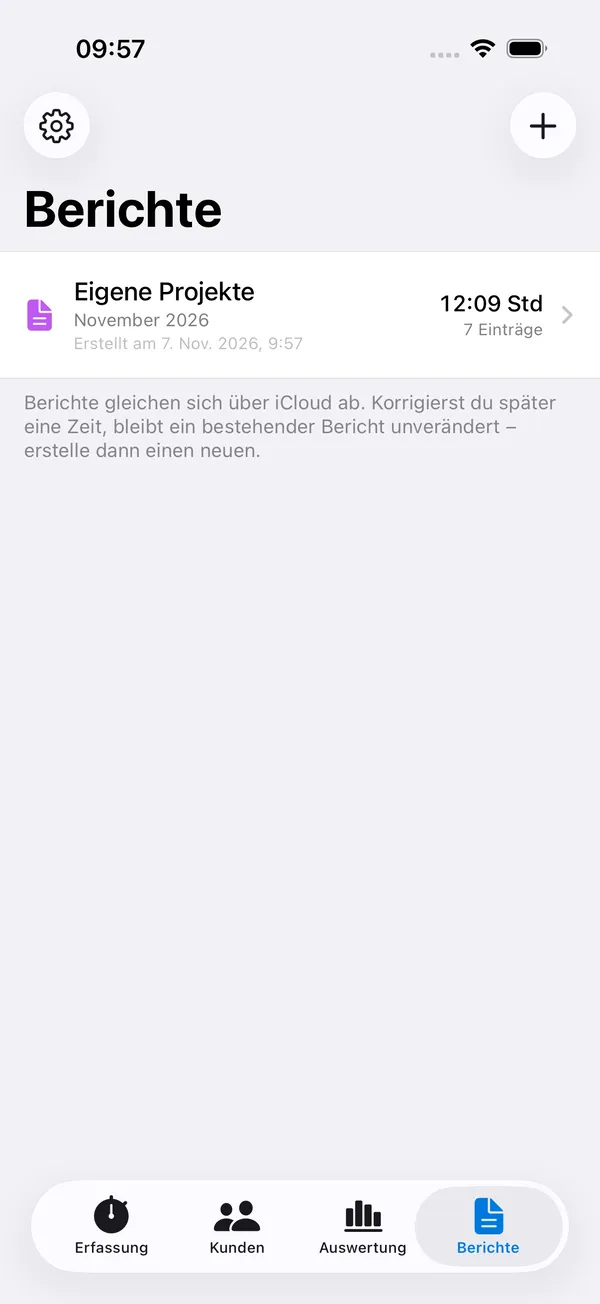
The Reports tab lists the timesheets you have created, newest first: company, period, total and number of entries.
Tap + in the top right: choose the company and the period – this or last week, this or last month. Below, you immediately see what will go in. If no time has been tracked there, Create stays grayed out.
With Custom you choose the period yourself. Both days are included: “17th to 23rd” includes all of the 23rd.

Tap a report to open the PDF in the app. From there you can share it (Mail, Messages, Files) or store it via Save as.
The document has the company name as its title, with the period and grand total below. It lists the entries by day with daily totals, notes and tags – and ends with a breakdown by project. A4, multiple pages, with page numbers.


8Without opening the app
Action button (iPhone 15 Pro and later)
Set it up under Settings › Action Button › Shortcut › My Time-Tracker › “Toggle Time”. One press starts or stops on the project you used last – even when the device is locked.
Siri and Shortcuts
“Toggle Time”, “Start Time” (with a choice of project), “Stop Time” and “Switch Project” are available as shortcuts and can be used in automations or put on an NFC tag.
Widgets and Control Center
Widgets are available for the Home Screen and Lock Screen in three sizes. When setting one up, you choose which projects the widget offers to start; without a selection it shows your favorites. The large widget has room for eight. There is also a control for Control Center.
Widgets don’t update every second – iOS fetches new values at intervals. The running time keeps counting in the widget itself.
Live Activity
While a timer is running, it appears on the Lock Screen and in the Dynamic Island, with the running time and the daily total. If you start on the watch while the iPhone is in your pocket, a notification sometimes appears instead: iOS doesn’t allow an app in the background to start a Live Activity.
Apple Watch
Start, stop, switch projects – plus complications for your watch face. The watch doesn’t write entries itself; it sends the command to the iPhone. If the iPhone is out of range, the command is delivered with its timestamp as soon as the connection is back.
9On the Mac
On the Mac, the app runs as a menu bar app: no window appears at launch, only the display in the top right – a stopwatch while tracking (“● 1:03:05”), otherwise the daily total. On first launch, a short notice explains where to find the app.
A click on the display opens the menu: check the status, start, stop and switch projects. Favorites are at the top, the other projects grouped by client, ready to expand.
You open the full window with analysis and reports via Open Window in the menu, and the settings via Settings. Turn on opening at login under Settings › Mac – this requires the app to be in the Applications folder.
Bring deleted entries back with ⌘Z.
10On the iPad
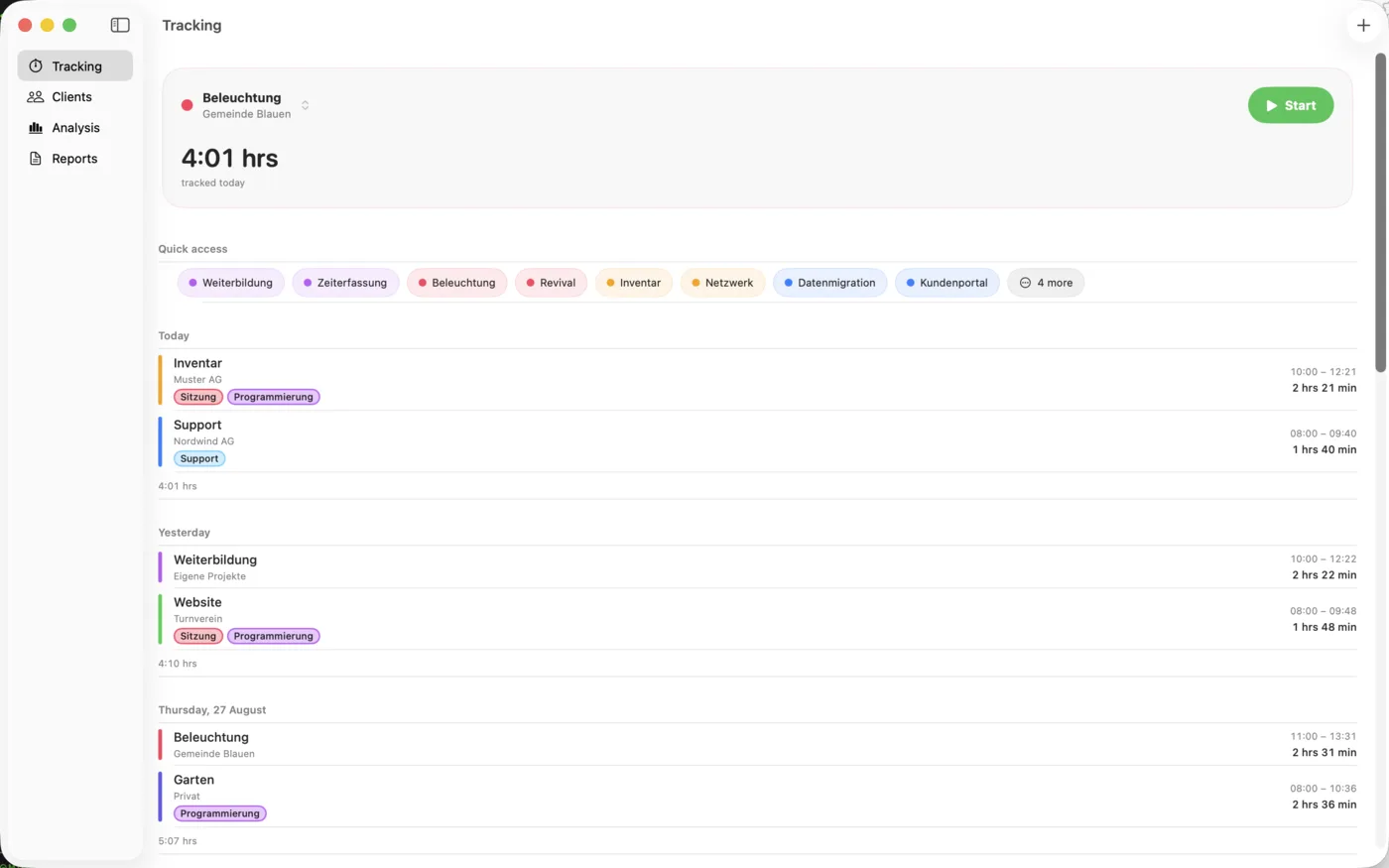
The same app, more room. The sections sit at the top as a bar; use the icon on the left to expand them into a sidebar.
With a keyboard, ⌘Z undoes just like on the Mac.

11Settings
- Daily goal (default: off). When turned on, the app shows progress, the weekly balance and a forecast of when you will reach the goal. You decide which weekdays count.
- Tracking: splitting at midnight, and this is where the tags live.
- Notifications: at 50 % and 100 % of the daily goal, plus a reminder when a timer runs for a very long time (after 4 to 12 hours). Everything is scheduled locally on the device.
- Unlimited: purchase and Restore Purchase.
- Data: last iCloud sync, status of the data store and Export CSV file.
- Trash: deleted entries and the period until they are deleted permanently.
- Getting started under “Info” shows the introduction again.

12Free and the purchase
Without a purchase, you track time for one client with three projects. If you need more, Time-Tracker Unlimited unlocks as many clients and projects as you like – one-time, no subscription (CHF 9 in Switzerland). The purchase covers iPhone, iPad and Mac together and can be shared with your family.
Everything else is included without a purchase: analysis, reports, CSV export, trash, widgets, Apple Watch, the Action button and iCloud sync.
On a second device, Settings › Unlimited › Restore Purchase is all it takes. Existing clients and projects are always kept – the limit only applies to creating new ones. Archived ones count toward it.
13What the app doesn’t do
- No hours or annual balance account. It tells you where your time goes – not how many hours you still owe.
- No hourly rates, no revenue, no invoices. The timesheet is a record of work, not an invoice.
- No break management and no Pomodoro rhythm. Either one timer is running or none is.
- No account, no server. The data lives on the device and in your private iCloud database. There are no analytics, tracking or advertising services.
14If something goes wrong
Times don’t show up on the other device
Sync runs through your private iCloud database. Both devices must be signed in to the same Apple Account and have iCloud Drive turned on. The status is shown under Settings › Data › Data store. A running timer appears on the other devices within a few seconds; all devices should have the same version of the app.
A deleted entry is missing
Look under Settings › Trash. If the period has expired, it has been deleted permanently.
The report doesn’t contain what I expected
A report only includes completed entries for the chosen company in the chosen period. A timer that is still running doesn’t belong in a timesheet – stop it and create the report again.
A widget doesn’t show the projects I want
Touch and hold the widget, choose “Edit Widget” and set the projects yourself. Without a selection, it shows your favorites.
Something else
Email mytimetracker@olly.ch. A human replies, not a form – usually within a few days. If the app crashed, it helps a lot to mention what you did right before.
System requirements: iOS and iPadOS 18, macOS 15, watchOS 11 or later.